Choose reading mode (more settings inside the app)
The software, apps and digital tools worth knowing about, grouped by the specific reading problem each one solves.
Five categories of assistive technology cover most ADHD reading problems, and picking the right one starts with naming the problem rather than browsing the app store. Text-to-speech is for when decoding swallows all your attention before meaning arrives, distraction blockers are for when the internet keeps winning, paced reading tools are for when the ordinary pace of a page feels far too slow, note-taking apps are for when nothing sticks past the end of the chapter, and visual tracking aids are for when you keep losing your place on the line. Work out which of those is yours and start there, because buying five tools in one weekend is how people end up using none of them by the following month. This guide takes each category in turn, explains what it fixes and names the specific tools worth a look. For a head-to-head look at the paid apps rather than the categories, our comparison of the best ADHD reading apps weighs six of them on price, platforms and what each one is genuinely best at.

Text-to-Speech Readers
Text-to-speech turns written text into spoken words, and it works either as an alternative to reading or, better in most cases, alongside it with your eyes following the same words. For a great many people with ADHD this is the single biggest change available to them, and it is usually free to try. If your eyes routinely scan a page while your mind is somewhere else entirely, this is the category to open first, before you spend any money on anything else.
Why It Helps
Multi-sensory input suits an ADHD brain, and hearing the text while your eyes follow it holds attention considerably better than either channel does on its own. It also takes the decoding load off, which frees up mental resources for the meaning rather than the mechanics. On long or complex material, which is exactly where attention normally begins to slide, that difference is what keeps you moving through the pages. There is a second benefit worth knowing about too: audio sets the pace, so you cannot silently stall on the same paragraph for ten minutes without noticing that it happened. The voice keeps moving, and you move along with it.
Tools Worth Trying
Speechify: Your Personal Reading Assistant
Speechify is popular for its natural-sounding voices and for how much ground it covers. You can adjust the reading speed, photograph physical text and have it read back to you using OCR, and use it across iOS, Android, Chrome and Mac, which makes it practical for articles, documents and even email while you are moving around during the day. The highlighting feature, which marks each word as it is spoken, is particularly good at holding focus for readers whose eyes tend to drift ahead. It suits students, professionals and anybody working through a lot of text each week. For detail, see our review of Speechify for ADHD.
NaturalReader: Versatile Text-to-Speech Solution
NaturalReader has a solid feature set split across free and paid tiers, and it handles a wide range of file types including PDFs and Office documents, running either online or as a desktop application. There are several voices to choose between and full control over speed. The free version does enough for basic use, which makes it a low-risk place to begin testing whether audio helps you at all. It is the better pick if you deal with mixed file formats or simply prefer a desktop app to a browser extension. Being able to drop a PDF straight in matters more than it sounds, since PDFs are where a great deal of dense professional reading actually lives. For the Word files that arrive instead, a DOCX to EPUB converter turns a rigid document into something a reading app can reflow and read back to you.
Combining audio with visual text is what makes any of this work, because two channels carrying the same information is markedly better for retention than one channel working alone. With either tool, spend a minute on the voice and speed settings instead of accepting whatever the defaults are, since a voice you find grating will quietly put you off using the tool at all, and a speed slightly above your natural reading pace usually holds attention best. For more on why this suits ADHD specifically, see the benefits of text-to-speech tools for ADHD.

Distraction-Blocking Software
Digital distraction is the main obstacle to sustained attention for almost everyone now, and it is a good deal sharper with ADHD. Blocking software builds a boundary you cannot casually step over in a moment of restlessness, which is exactly when the boundary is needed.
Why It Helps
An ADHD brain reacts strongly to anything new, so a notification or an open tab is genuinely hard to ignore rather than merely tempting. Blockers cut off access to specified sites, specified apps or the internet as a whole for a set period, which leaves the reading as the only thing available to do. They also prevent task-switching, and task-switching is what really destroys comprehension, since every switch costs you the thread of understanding you had spent minutes building. Rebuilding that thread takes far longer than the interruption itself did, which is why five seconds spent on a notification can cost you ten minutes of reading.
Tools Worth Trying
Freedom: Reclaim Your Time and Attention
Freedom blocks distracting sites and apps across all of your devices at once, covering Mac, Windows, Android, iOS and Chrome. You can schedule recurring sessions in order to build a habit, or start one on demand when a piece of reading has to get done. The cross-device syncing is the real strength here, since blocking your laptop while your phone sits face-up beside it defeats the entire point of the exercise. It suits students, writers and anyone trying to establish reliable focused time. Scheduling sessions in advance is the feature to lean on, because deciding to block distractions at the moment you already feel distracted rarely works, given that this is precisely when your judgment is at its worst.
Cold Turkey Writer: For Serious Writing Sprints (and Reading!)
This one is marketed at writers and it adapts to reading without much trouble. It turns your computer into a distraction-free typewriter and blocks everything else until you hit a word count or a time limit you set beforehand, so for reading you simply set a time goal and stay locked in until it is met. The tool is uncompromising by design, which makes it a good fit for people who already know that a softer option will just get dismissed with two clicks. If you have installed and then quietly ignored three gentler blockers, this is the category you have been avoiding.
Software only handles half of the problem, so it is worth looking at creating a distraction-free reading environment in the physical world as well, since changes to the room amplify whatever the software is doing on the screen.

If losing your place mid-paragraph is what brought you here, Celer’s moving highlight fixes exactly that.
Paced Reading and Dynamic Text
For some people with ADHD, the ordinary pace of reading leaves too much spare mental capacity, and the mind promptly wanders into the gap. Tools that speed up the delivery of text or restructure how it appears on screen can hold engagement in place by filling that gap deliberately.
Does Faster Actually Help?
Sometimes, and definitely not for everyone. Faster input can occupy the restless part of the brain, which improves focus for some readers noticeably, and the novelty of dynamic text grabs attention as well, at least for the first few sessions. It is worth testing carefully rather than adopting on principle, because for other people the increased pace raises anxiety while comprehension quietly drops, which defeats the purpose of reading in the first place.
Tools Worth Trying
SwiftRead: Browser-Based Speed Reading
SwiftRead is a Chrome extension built on RSVP, or Rapid Serial Visual Presentation, which flashes words one at a time or in small groups at a speed you choose, in the center of the screen. Because your eyes stay still throughout, there is no line-tracking work left to do, which removes one source of effort entirely. It is easy to use and suits online articles and documents well, so it is aimed at students, researchers and anyone reading heavily on the web. One caution is worth taking seriously: RSVP removes your ability to glance back at the previous sentence, and rereading is often how comprehension repairs itself in real time. Use it on material you can afford to skim rather than on anything you have to learn properly.
Bionic Reading® and Similar Formatting Tools
Bionic Reading® reformats text so that the most concise parts of words are emphasized, on the theory that this guides your eye through the sentence and lets the brain recognize familiar words faster than it otherwise would. It is not speed reading in the RSVP sense at all, though many users report improvements in speed, focus and comprehension after switching to it. Several apps and browser extensions now include the formatting as an option you can toggle. There is more on the concept and on compatible tools at the official Bionic Reading® website.
Tools are only ever half of the answer, since knowing the strategies matters just as much as owning the software, and our Ultimate Guide to Reading with ADHD sets out the ones most worth learning first.
⏵
Experiment Freely What transforms reading for one person does very little for another, so try different tools and different settings until something genuinely clicks.
⏵
Combine Tools Text-to-speech alongside a distraction blocker often works better than either one alone, and the combinations are where the real gains tend to appear.
⏵
Start Small Add new technology gradually, using short focused sessions first and building up once the tool feels natural rather than fiddly to operate.
⏵
Check for Trials Most paid tools offer a free trial or a basic tier, so use those to test properly for a week or two before paying for anything.
Note-Taking Apps
Comprehension improves sharply once engagement becomes active rather than passive, and digital note-taking gives you a flexible way to work with a text, capture the ideas as they arrive and find them again months later when they turn out to matter.
Why It Helps
ADHD affects working memory and organization, and note-taking props up both of them at once. Summarizing, questioning or linking ideas moves information from passive to active, which is what encodes it into long-term memory rather than leaving it to fade. Digital tools then add searchability, embedded media and easy editing on top of that. All of this leans on executive functions, which is exactly why supporting them externally works so well. A note you can search later is a memory you no longer have to hold yourself, and offloading it frees capacity for the reading itself.
Tools Worth Trying
Evernote: The Versatile Digital Filing Cabinet
Evernote is built for capturing and organizing many different kinds of information without forcing them into one shape. Notebooks, tags, a web clipper for saving articles and a decent template system make it adaptable to whatever you throw at it. You can type, record audio and attach files, ending up with searchable notes rather than a pile of unconnected fragments, and it syncs across devices so nothing gets stranded on the machine you were using at the time. It suits students organizing research, professionals tracking project detail, and anyone who wants a single system for everything.
Microsoft OneNote: The Freeform Digital Notebook
OneNote behaves more like a canvas than a document, which puts it closer to a physical notebook with digital advantages attached. Drawing and handwriting are intuitive, which suits visual thinkers who find typed bullet points restrictive, embedding media is straightforward, and it integrates with the rest of Office if that is where you already work. Notebooks, sections and pages give you as much structure as you want and no more. It is a good choice if you sketch your ideas out or dislike being forced into a rigid format, and it is free, which removes the main reason people never get around to trying a note system at all.
Neither of these is only a note-taking app in practice, since both turn into a personal knowledge base once you have used them for a few months. As you read, think about how you would summarize a chapter in three lines, capture the new vocabulary you met, or connect an idea to something you already knew from elsewhere.
Visual Tracking Aids
Visual stress and the habit of losing your place on the page are real obstacles for a portion of readers with ADHD, and they are rarely discussed because they sound too small to matter. Digital visual aids deal with both of them directly and cheaply.
Why It Helps
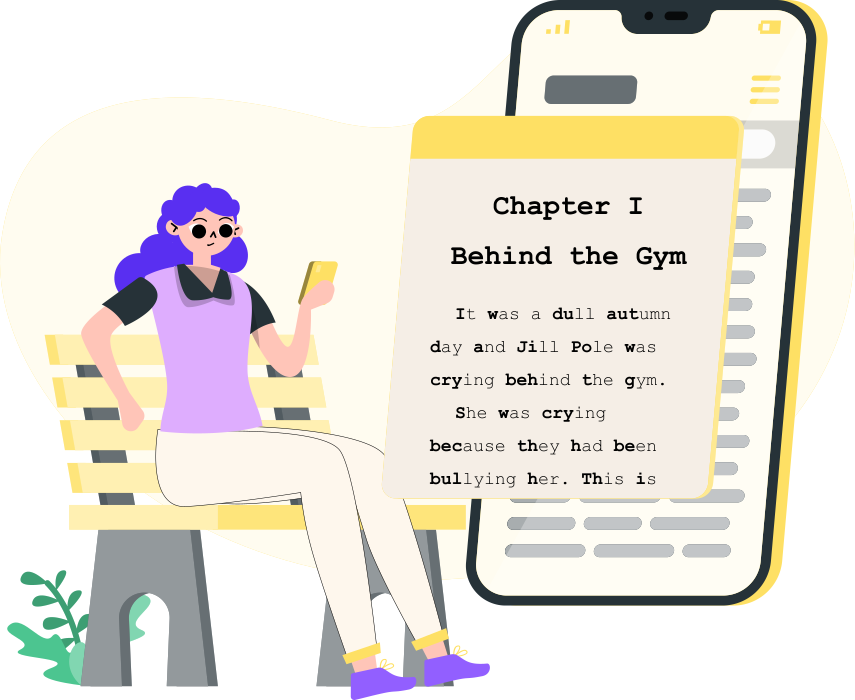
Big blocks of unbroken text are overwhelming on sight, before a word has been read. Eyes jump lines or lose their position, and by the time you notice what happened, the comprehension has gone with it. Reading rulers and screen overlays highlight the line you are on, mask the surrounding text or shift background colors to cut glare, all of which guides your eyes across the page and makes a long stretch of reading much less tiring. Celer does exactly this on iPhone and iPad, running a guided highlight through your own EPUBs and PDFs at a pace you set, alongside softer themes and dyslexia-friendly fonts such as OpenDyslexic. The effect is easy to underestimate until you actually try it, because tracking a line of text is invisible effort, and removing it leaves noticeably more attention available for the words themselves.
Tools Worth Trying
Helperbird: An All-in-One Accessibility Browser Extension
Helperbird packs a surprising amount of reading support into a single browser extension, including customizable reading rulers, colored overlays, dyslexia-friendly fonts, text magnification and text-to-speech integration. Having several forms of support in one place is genuinely convenient when you are not yet sure which of them you need, and it is particularly useful for students and for anyone doing most of their reading online. Because everything sits inside one extension, you can switch a feature on and off mid-page and work out which parts you actually rely on rather than guessing.
Read&Write by Texthelp: Literacy Support Software
Read&Write is a serious literacy tool used widely in schools and workplaces, and it is available across platforms rather than tied to one. It offers screen masking to isolate individual lines or sections, a reading ruler, text-to-speech, word prediction and dictionary tools, and it plugs into browsers and document editors so that it is present in your normal workflow instead of sitting in a separate app you have to remember to open. You can learn more about its features on their site.
⏵
Adjust Settings Change the font size, the colors and the line spacing in the app itself or through an extension, since less visual clutter makes text easier to hold onto.
⏵
Take Breaks Use the Pomodoro Technique or simply set a timer, because breaks protect focus across a long session and stop the slide into fatigue before it starts.
⏵
Consider Your Environment A quiet room, comfortable seating and decent light still matter a great deal, however capable the software you are running happens to be.
⏵
Audiobooks as a Supplement Do not overlook audiobooks for ADHD readers, especially for leisure reading or for long material on days when visual reading is simply too demanding.
Building Your Own Toolkit
There is a great deal of assistive technology available now, and that abundance is genuinely good news for anyone who spent years being told to simply try harder. Text-to-speech carries the words, blockers hold the boundary, and visual aids guide your eyes along the line, with each one addressing a specific difficulty rather than asking you to push through it by force. That framing is the important part to hold onto. None of these are shortcuts or crutches, they are adjustments that let the effort you were already making finally produce a result.
Technology is a partner in this rather than a cure for it, and what works is the right combination for your particular needs and the way you learn. Be patient with the process of finding that combination, test the different options for long enough to judge them fairly, and count the small improvements as they arrive. Your route to easier reading belongs to you, and these tools exist to shorten it rather than to define it.
Pick one or two of the tools above that caught your attention and try them properly for a couple of weeks rather than an afternoon. What transforms reading for one person barely registers for another, so your own testing is the only reliable guide available. Start with whichever problem is currently costing you the most time, and add a second tool only once the first has settled into your routine.
Try Celer free on iPhone and iPad

⭐️⭐️⭐️⭐️⭐️
"The only time I’m excited to read is with your app."
Dorcas
Related articles
How Text-to-Speech (TTS) Transforms Reading for ADHD
What text-to-speech does for focus, comprehension and reading stamina with ADHD, and how to pick a tool and set it up properly.
Are Audiobooks Better for ADHD? A Comprehensive Guide
How listening removes the parts of reading that ADHD makes hardest, what the research says about comprehension, and how to choose a book you will actually finish.
Speechify for ADHD: A Game-Changer for Reading?
A close look at what Speechify does, where it helps an ADHD reader most, and whether the paid version earns its price.